
Downgrade App: Keep Your Data on Android
“As security researchers note, Android’s package manager is designed to reject version code regressions. But we can override this.” Let us learn how to downgrade any Android app without losing your data using advanced, rootless terminal commands.
🔌 The Core Problem: The Destruction of Local Data
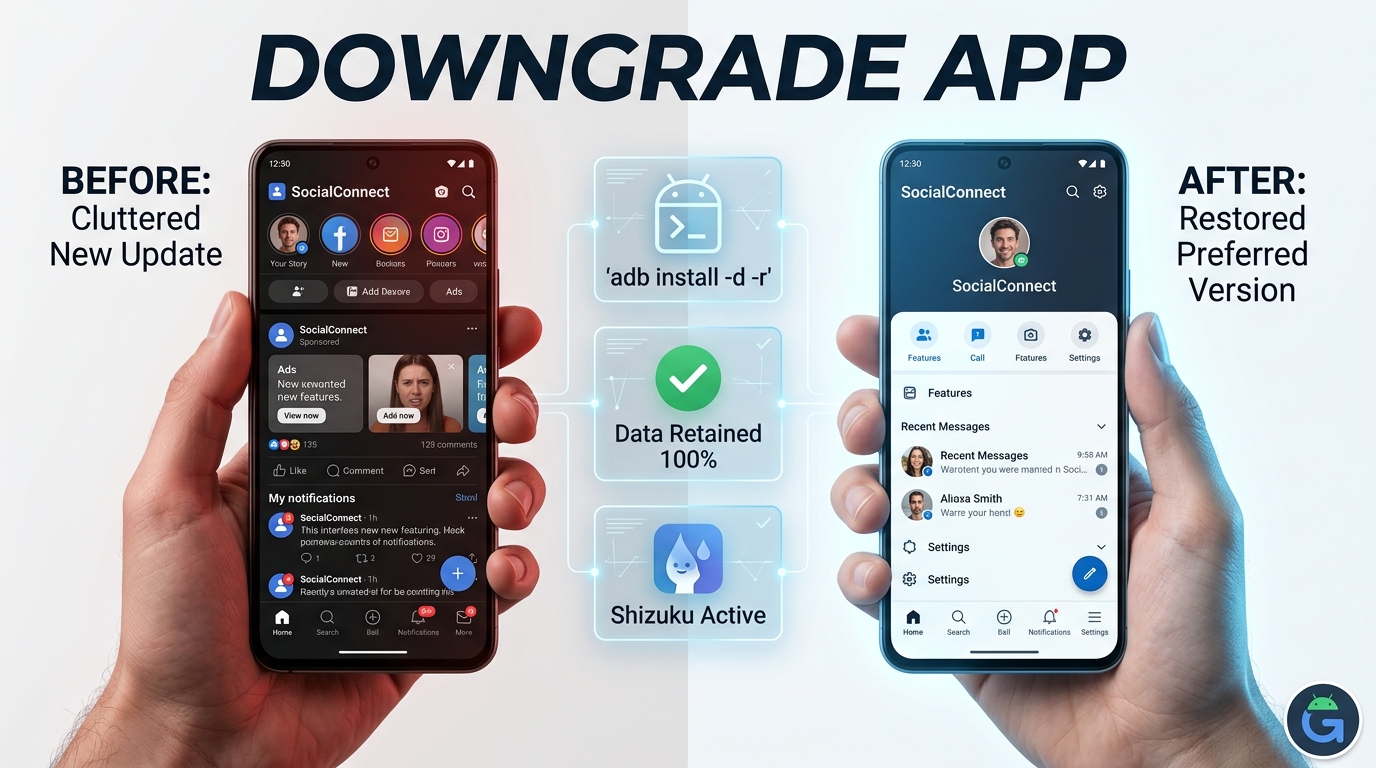
When an app update ruins a user interface or removes a beloved feature, your first instinct is to uninstall it and download an older APK. Do not do this. Uninstalling an app completely wipes its internal /data/data/ folder. You will lose your game saves, two-factor authenticator tokens, and cached configurations permanently.
To safely downgrade an app, we must bypass the standard user interface. Android is programmed to view older APK files as potential security threats. It will immediately block the installation if you try to simply tap an older file. Therefore, we must utilize the Android Package Manager (PM) directly to force a version rollback while explicitly commanding the system to retain existing user data.
The Evolution of Rootless Modifications
To understand current downgrade methodologies, we must look at the history of Android security. Years ago, manipulating the /data/ partition required “rooting” your device. According to XDA Developers archives, users heavily relied on tools like Titanium Backup. If you wanted to roll back an update, you needed dangerous superuser permissions.
As documented in the Android OS version history, Google tightened security sandboxing over time. Rooting became nearly impossible for average users. This shifted power to the Android Debug Bridge (ADB). By 2024, connecting a phone to a PC to run terminal commands became the standard [web:212]. However, a major breakthrough occurred recently. The popularization of the Shizuku framework in 2025 and 2026 allowed users to execute these ADB-level commands directly on their phones via Wireless Debugging, completely eliminating the need for a computer.
System Apps vs. User Apps: A Crucial Distinction
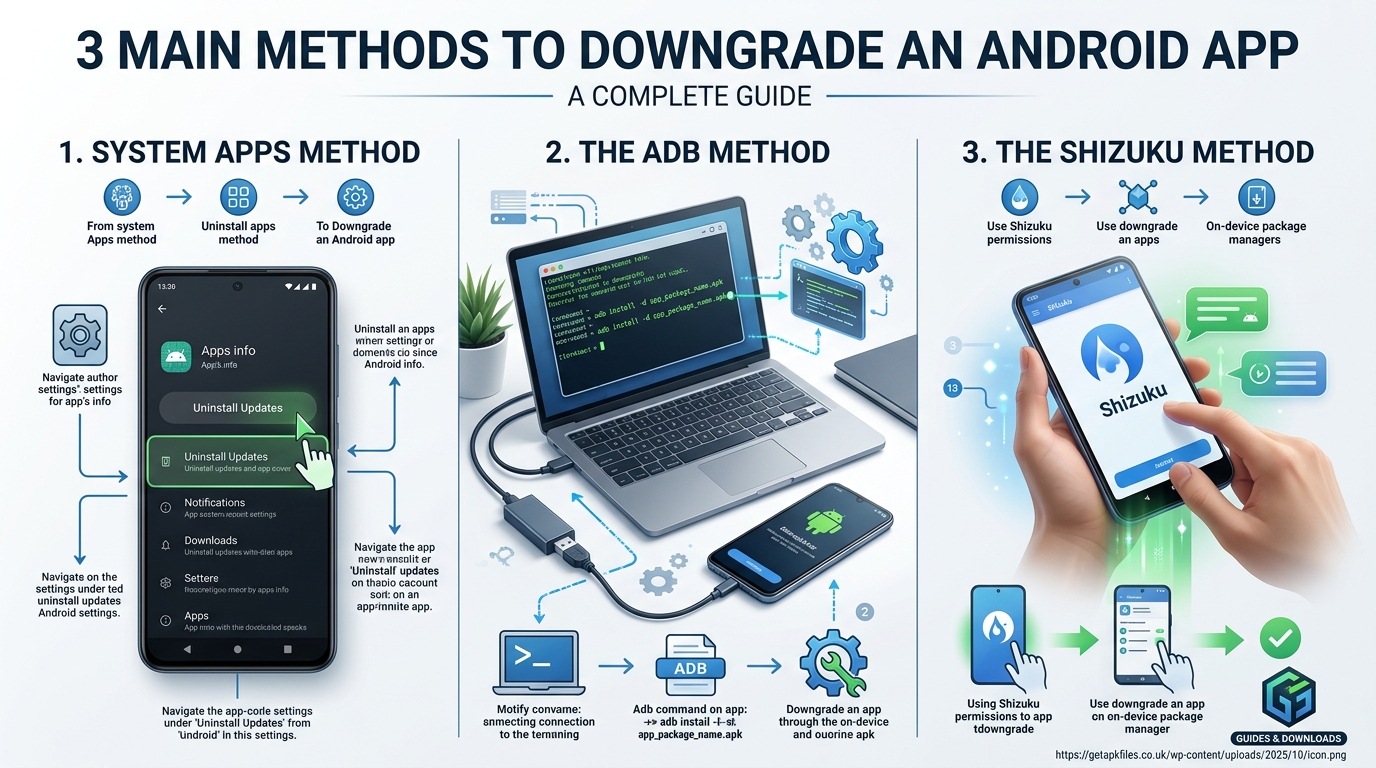
Before launching terminal commands, check if the app came pre-installed on your phone (like Google Chrome or the default Camera). System apps are incredibly easy to downgrade.
According to Android Authority, you do not need ADB for system apps [web:204]. Simply go to Settings > Apps, select the system app, tap the three-dot menu in the top right corner, and hit Uninstall Updates. This immediately reverts the app to the factory-installed version while retaining your local data. However, if you downloaded the app yourself (a User App), you must proceed to the advanced ADB or Shizuku methods below.
Step 1: Sourcing Cryptographically Safe APKs
You cannot downgrade an app if you do not possess the older file. You must download the previous version of the APK. However, the internet is full of malware masquerading as older software versions.
🛑 Cryptographic Warning
The Android Package Manager will aggressively reject the downgrade command if the older APK’s cryptographic signature does not perfectly match the installed version. You cannot use modded or tampered APKs for this process.
You must source the file from a legitimate repository. We recommend APKMirror. They manually verify the cryptographic signatures of all uploads against the official Google Play Store releases [web:205]. Download the desired version to your device’s Downloads folder. Rename it something simple, like app.apk, to make the terminal commands easier.
Step 2: The ADB PC Method (Maximum Reliability)
This is the most reliable method for Android power users. You will need a PC and a USB cable. First, you must unlock Developer Options on your phone and enable USB Debugging.
Connect your phone to your PC. Open the command prompt in the folder containing your downloaded SDK Platform Tools. Move the downloaded app.apk into this same folder.
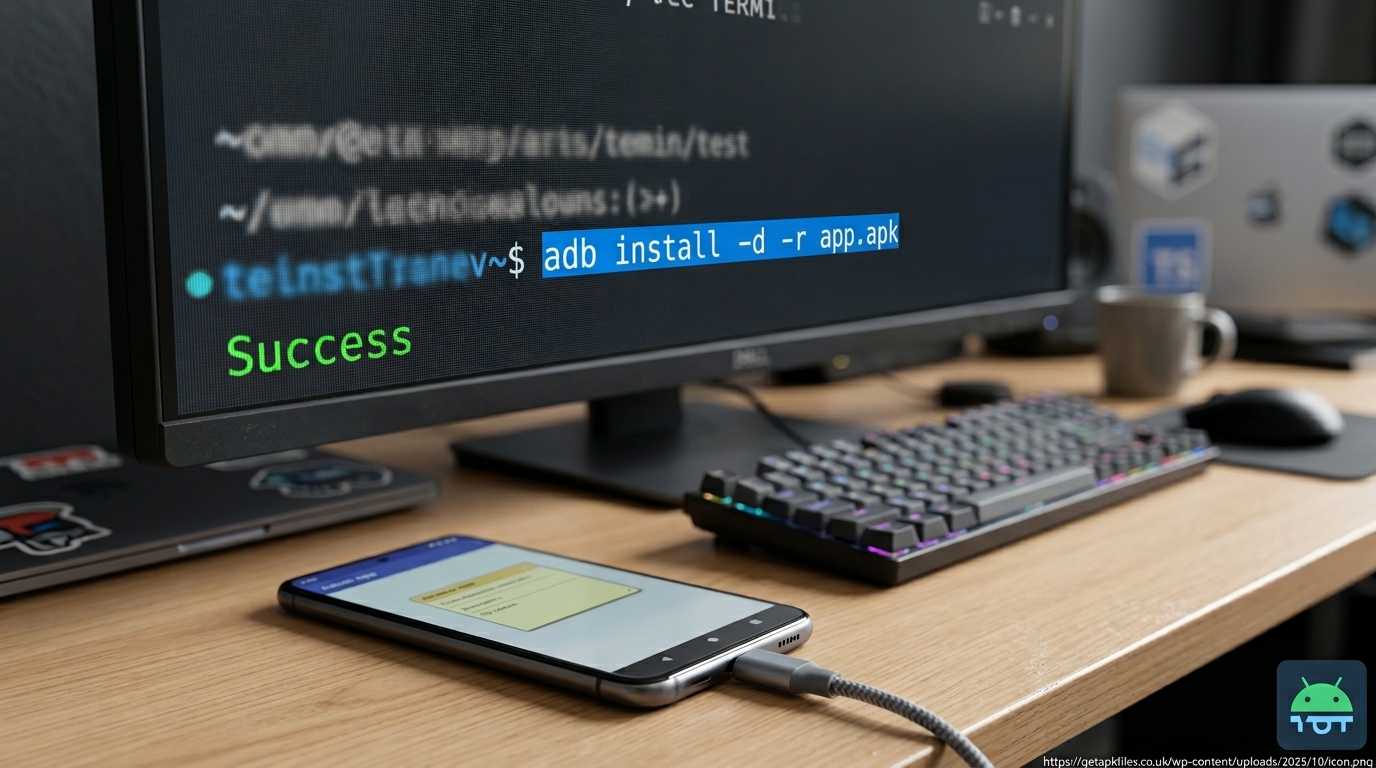
Type the following command exactly as written, pressing Enter:
Let us break down this technical command. As explained by software engineers at How-To Geek, the -d flag explicitly authorizes a version downgrade, overriding the security block. The -r flag tells the package manager to replace the existing application without wiping its /data/ folder [web:205]. If you see the word “Success” in the terminal, you have successfully downgraded the app.
Expert Video Analysis: ADB Sideloading
Watch this technical breakdown demonstrating the exact syntax of the ADB sideload command. The video proves how the -r flag preserves local game save data perfectly during a rollback.
Video Summary: A step-by-step visual guide to initializing Platform Tools, authorizing the PC fingerprint on the phone, and executing the critical downgrade flags [web:212].
Step 3: Rootless On-Device Downgrading (Shizuku)
If you do not have a PC, the 2026 standard utilizes Shizuku. Shizuku is a framework that leverages Android’s Wireless Debugging feature to grant system-level APIs to helper apps.
Install Shizuku from the Play Store. Pair it via Wireless Debugging in your Developer Options. Once Shizuku is active, download a helper app from GitHub called InstallWithOptions [web:213]. This helper app uses Shizuku’s elevated privileges. You simply select your older APK file, check the boxes for Replace Existing (the -r flag) and Allow Downgrade (the -d flag), and press install. It executes the terminal command entirely on the device.
Final Step: Disabling Play Store Auto-Updates
You have successfully downgraded the app. However, if you plug your phone into a charger and go to sleep, the Google Play Store will automatically “update” the app back to the terrible version you just escaped. You must lock the version.

Open the Google Play Store and search for the app you just downgraded. Do not press “Update.” Instead, tap the three-dot menu in the top right corner of the screen. Uncheck the box that says Enable auto update. This tells the Play Store to ignore this specific app during nightly update sweeps [web:205].
Optimize Your APK Storage
Managing downloaded older versions of apps takes up significant space. Upgrade to a professional file management system to organize your APK archive efficiently.
Download Solid Explorer Pro Disclosure: This post contains affiliate links. We may earn a commission at no extra cost to you.Learn More: Deep-Dive Resources
We processed the latest ADB documentation through Google NotebookLM. Explore these interactive resources to master rootless Android modifications.
Final Expert Verdict
A bad app update should not hold your local data hostage. While Google intentionally hides the downgrade option to maintain a closed security environment, the Android ecosystem remains incredibly flexible for those willing to learn.
Whether you utilize a PC terminal command (adb install -d -r) or leverage the modern on-device Shizuku framework, you have the power to dictate exactly which software versions run on your hardware. By carefully sourcing safe APKs and remembering to disable auto-updates, you can maintain total control over your Android experience without sacrificing your critical data.
Download Downgrade App: Keep Your Data on Android (Expert Guide) APK
Safe, verified, and scanned for viruses.
Leave a Reply