
Photo Unblur (2026): Fix Blurry Images Free in Google Photos!
We have all been there. You capture a once-in-a-lifetime moment—a pet jumping or a child laughing—only to realize later that camera shake ruined the shot. Before you delete that memory, discover how Google’s native AI can rescue it.
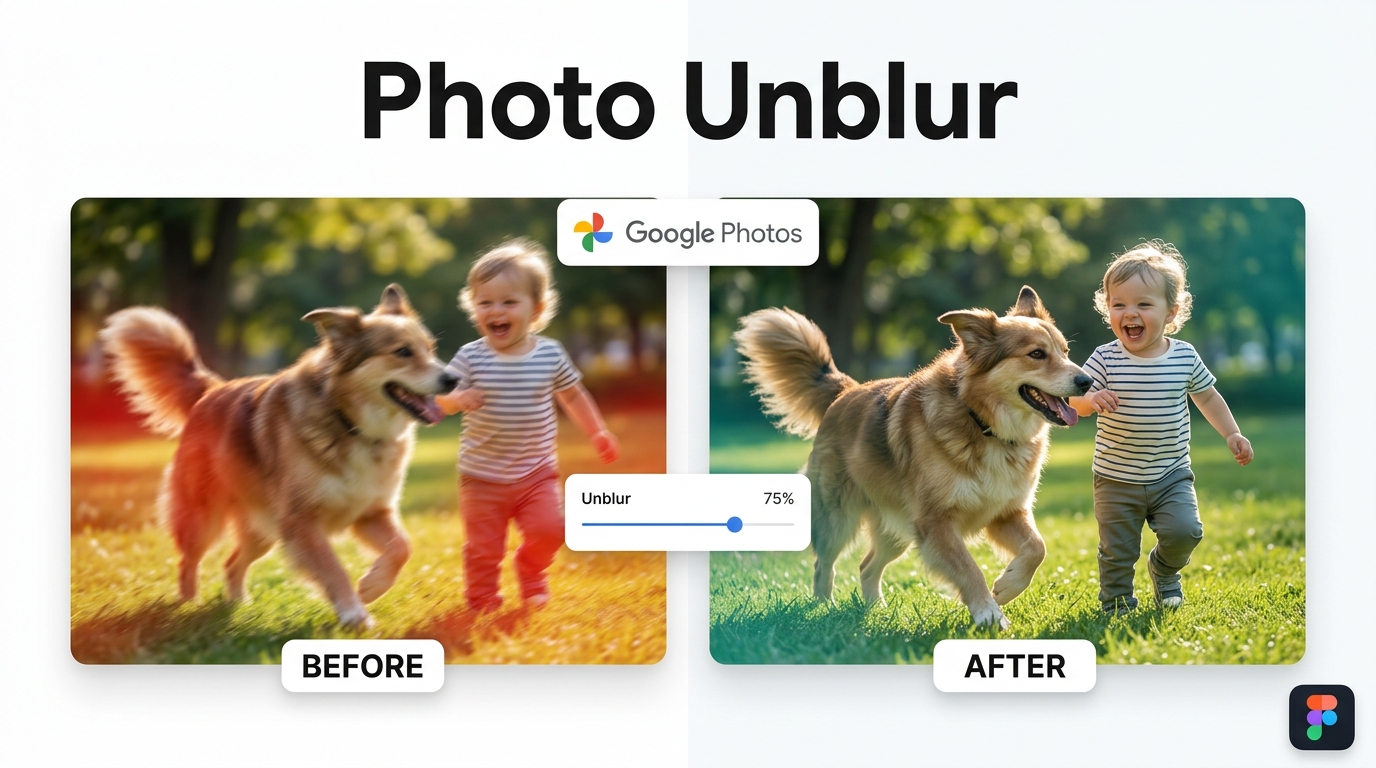
We created interactive study materials using NotebookLM to help you understand exactly what types of blur the AI can fix.
1. The Evolution: Breaking the Hardware Barrier
Fixing blurry photos used to be impossible. Traditional software simply applied an “Unsharp Mask,” which highlighted the contrast on edges but fundamentally just added ugly, grainy noise to your image. You couldn’t actually create detail that the camera sensor missed.
That changed in late 2021 when Google introduced Face Unblur on the Pixel 6. That system was a neat hardware trick—it snapped an invisible ultrawide shot at the same time as your main photo to catch moving faces. However, it only worked at the exact moment you pressed the shutter.
The 2024 Democratization
The real breakthrough came with the Pixel 7, which used machine learning to retroactively unblur any old photo. In a massive shift, Google announced in May 2024 that they were unlocking this enterprise-grade feature for everyone. Today, in 2026, you do not need a Pixel. The Photo Unblur tool is available to all iPhone and Android users directly inside the free Google Photos app.
2. How the AI Actually Reconstructs Your Image
So, how does a free app achieve what $20/month desktop software struggles to do? The secret lies in predictive machine learning models rather than simple contrast sliders.
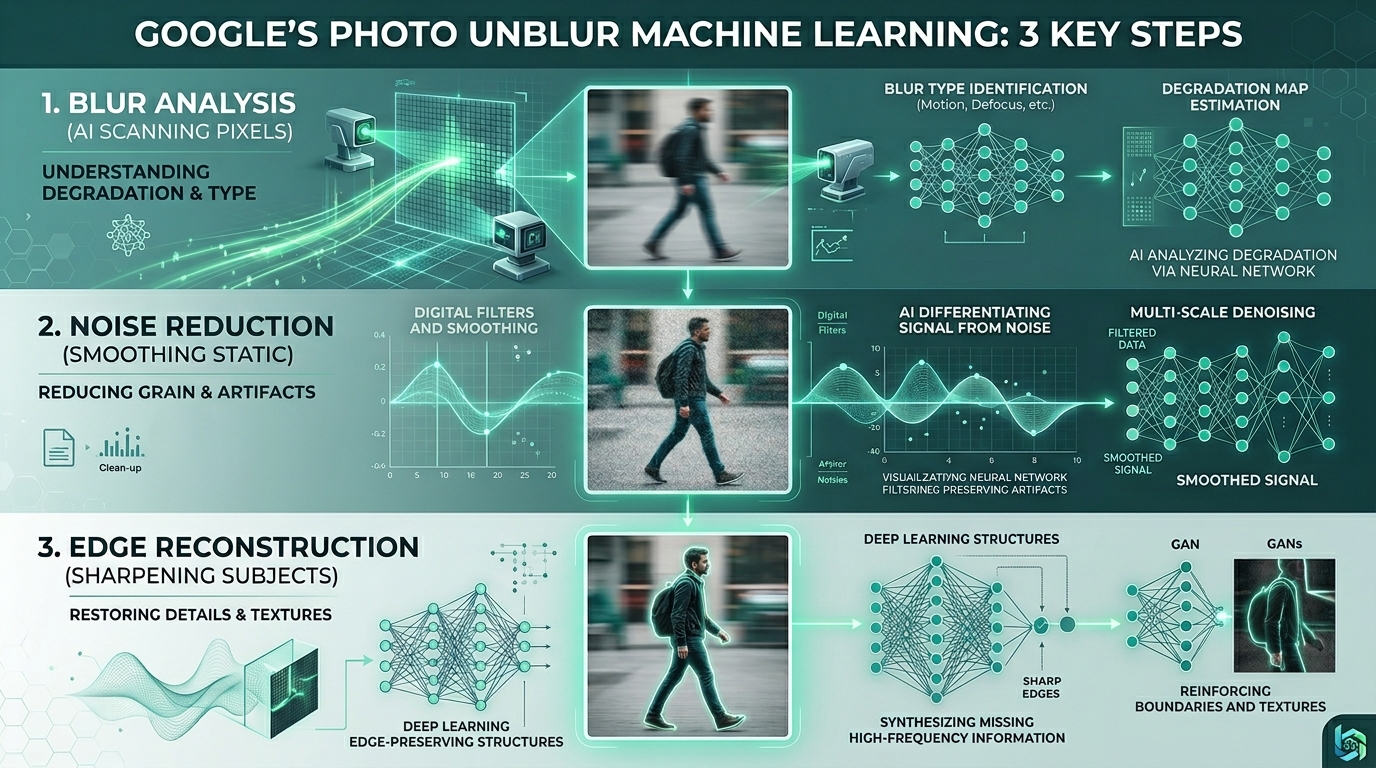
When you trigger the tool, the AI performs three specific actions instantly:
-
1
Blur Identification: The neural network analyzes the image to determine if the issue is motion blur (subject moving), camera shake (hands shaking), or gaussian blur (missed focus).
-
2
Noise Reduction: Before sharpening, the algorithm smooths out the static and grain inherent in low-light photography.
-
3
Edge Reconstruction: Utilizing a massive dataset of billions of images, the AI essentially “guesses” what the missing pixel data should look like, rebuilding eyes, hair, and structural lines with stunning precision.
3. Step-by-Step: Rescue Your Blurry Photos
Many users give up because they can’t find the tool. Google buries it slightly within the editing suite. Here is the exact path to fix your image today.
The Fix-It Framework
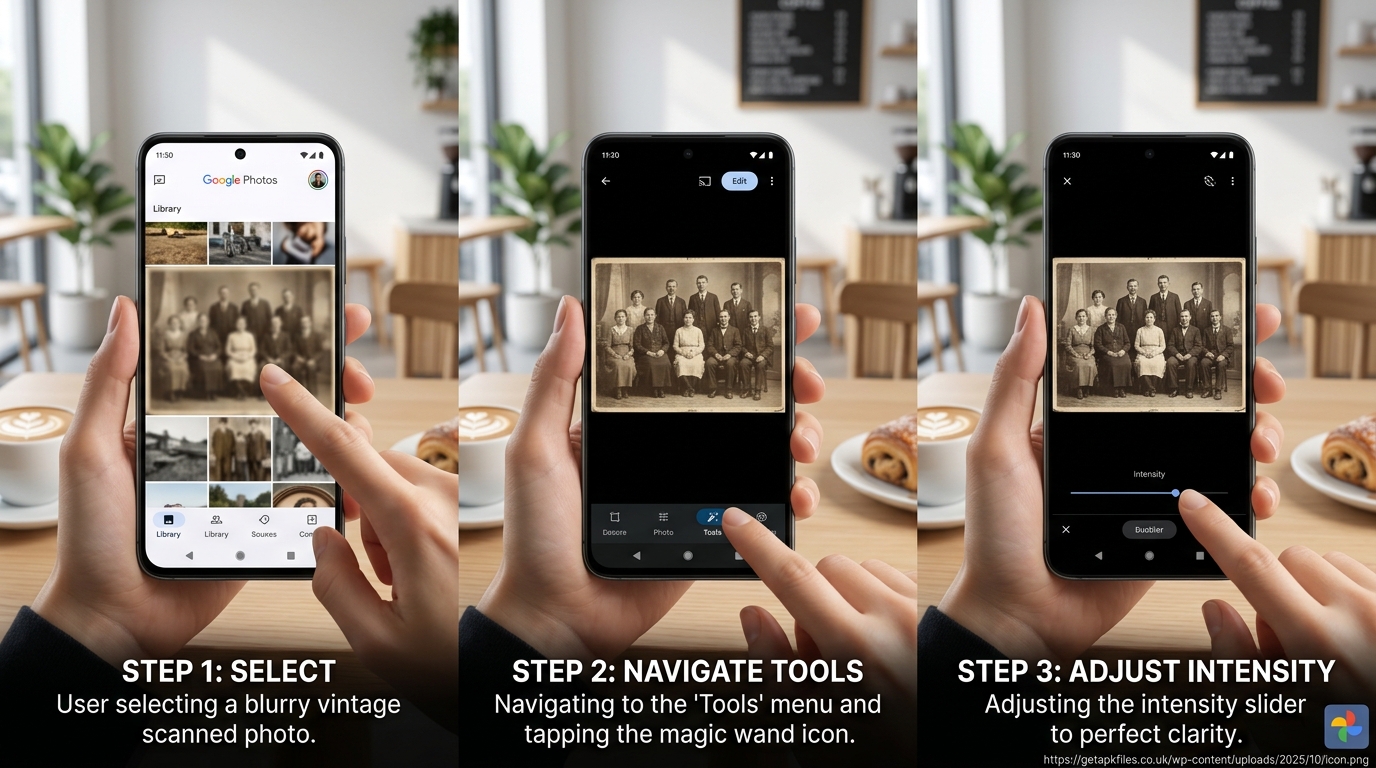
- Open Google Photos: Select the blurry picture. (This works on photos taken 20 years ago just as well as photos taken yesterday).
- Tap Edit: Look at the bottom menu and tap the Edit button.
- Swipe to Tools: Scroll the bottom carousel over to the Tools tab.
- Tap Unblur: The magic wand icon will appear. The AI will immediately process the image.
- Adjust the Slider: Crucial step! Do not always leave it at 100. Dial the slider back to 70 or 80 to prevent the face from looking like artificial plastic (the uncanny valley effect).
If your app is crashing when you hit the edit button, you may have a corrupted installation. Check out our guide on resolving app installation errors to refresh the software.
4. Comparative Analysis: Is the Free Tool the Best?
The market is flooded with paid AI image upscalers right now. How does Google’s native offering compare to dedicated software like Topaz AI or web tools like Fotor and Pixlr?
| Evaluation Criteria | Google Photo Unblur | Premium AI Upscalers (e.g., Topaz) | Web-Based Free Tools |
|---|---|---|---|
| Cost & Accessibility | 100% Free, built-in mobile app | $50-$200 one-time or subscription | Ad-heavy, restricted resolution exports |
| Facial Reconstruction | Excellent for mild to moderate blur | Superior for extreme damage | Often produces “plasticky” artifacting |
| Privacy & Security | High (Processed on device/trusted cloud) | Moderate (Requires local computing power) | Low (Uploading personal photos to random servers) |
| Old Scanned Photos | Very good | Industry Standard | Hit or miss |
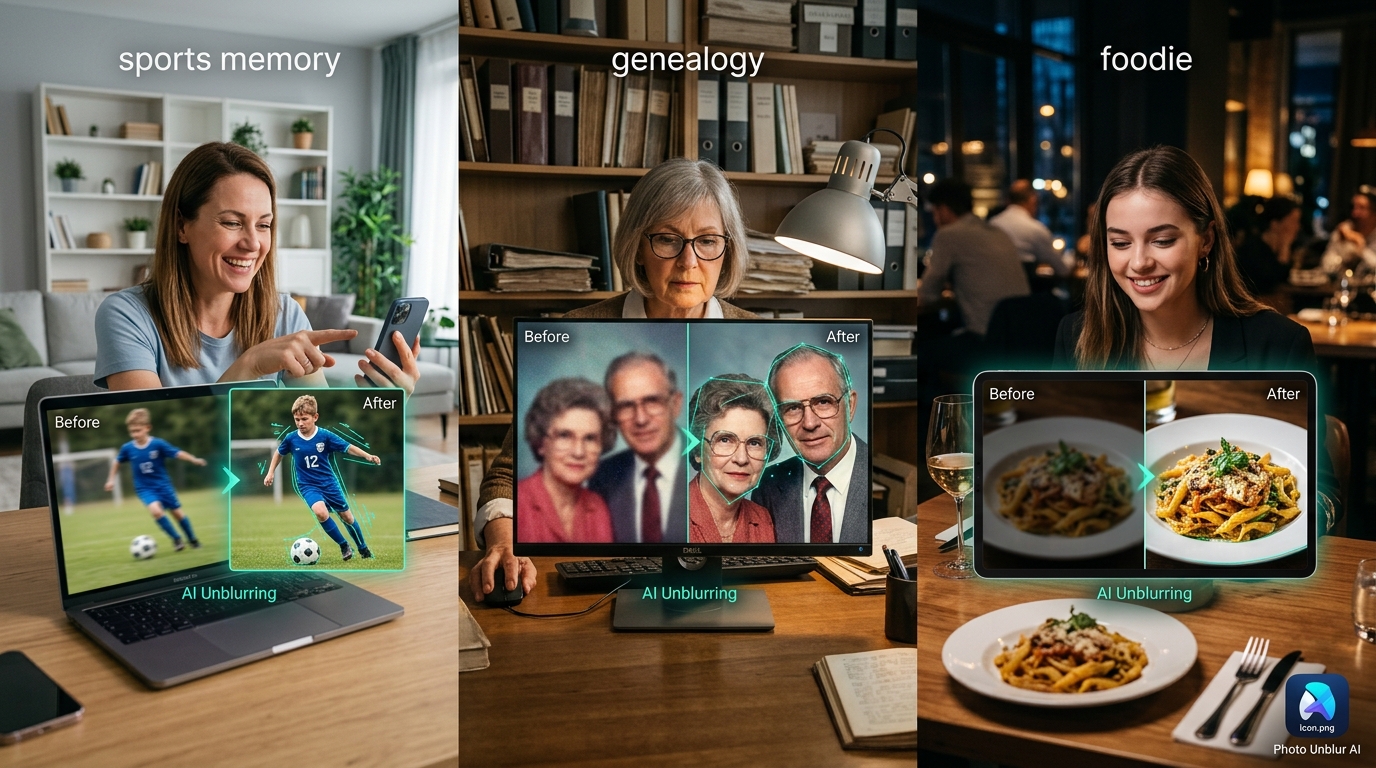
Watch: AI Unblur in Action
Want to see the difference between a ruined shot and a rescued memory? Watch this technical breakdown of the Magic Editor in Google Photos.
Never Take a Blurry Photo Again
While AI software is amazing, nothing beats capturing the perfect sharp image in camera. Upgrade to the latest Google Pixel to utilize hardware-level optical image stabilization and the fastest shutter speeds on the market.
Check Pixel Deals on Amazon Disclosure: This post contains affiliate links. We may earn a commission.The Final Verdict
You no longer have to accept ruined memories. Google’s Photo Unblur is the undisputed champion of mobile image restoration simply because it is incredibly effective and completely free.
While professionals restoring heavily damaged historical archives might still need $200 desktop software, for the rest of us—trying to save a blurry picture of our dog or a poorly lit selfie—the AI inside Google Photos is a magical, problem-solving tool. I remember almost deleting a completely botched photo from a family wedding; dragging that slider to 80% brought my grandmother’s face back into perfect focus. Stop paying for sketchy third-party apps, open your Google Photos library, and start rescuing your history.
Authoritative References & Historical Context
- Google Blog (May 2024): Global Rollout of AI Editing Tools
- TechRadar: Deep Dive into the Tensor ML Blur Mechanics
- Android Police: Utilizing Photo Unblur on Smartphones
- ScreenApp (Feb 2026): Comparative Analysis of AI Image Restorers
Related GetAPKFiles Guides
Download Photo Unblur: Fix Blurry Images Free in Google Photos! APK
Safe, verified, and scanned for viruses.
Leave a Reply