
Clear Cache vs Clear Data: What Actually Frees Up Space?
Did you know that up to 30% of your phone’s storage is likely consumed by temporary junk files you don’t even need? Stop panicking over “Storage Full” warnings. Discover the exact difference between these two buttons so you can reclaim gigabytes of space safely.

🚨 The “Storage Full” Panic
You want to take a quick photo, but your phone refuses. A glaring “Storage Full” message pops up. You rush to your settings, find an app taking up 5GB of space, and freeze. You see two options: Clear Cache and Clear Data. If you press the wrong one, you might accidentally delete your precious memories. This confusion affects millions of users daily.
In 2026, modern apps hoard massive amounts of invisible files. We pre-load high-definition videos, save thousands of image thumbnails, and store language models locally. You need a reliable way to clean this digital clutter without destroying your personal accounts. Let us break down exactly what happens behind the scenes when you press these buttons.
The Evolution of Smartphone Caching
To understand why caching exists, we must look at technology history. The word “cache” comes from the French term for “hidden.” According to Wikipedia’s historical computing archives, caching was invented to store temporary data so computers could load frequent tasks faster. Early smartphones desperately needed this.
Think back to 2015. Most Android phones only had 8GB to 16GB of storage. At that time, users constantly navigated to recovery mode to “Wipe Cache Partition” just to install a single app update. As the Smithsonian tech archives demonstrate, storage was a premium commodity. By 2026, devices ship with 256GB minimums. However, according to recent tech reports from Reuters, apps have expanded to fill this void. Short-form video platforms now quietly download gigabytes of background data to ensure smooth, buffer-free swiping.
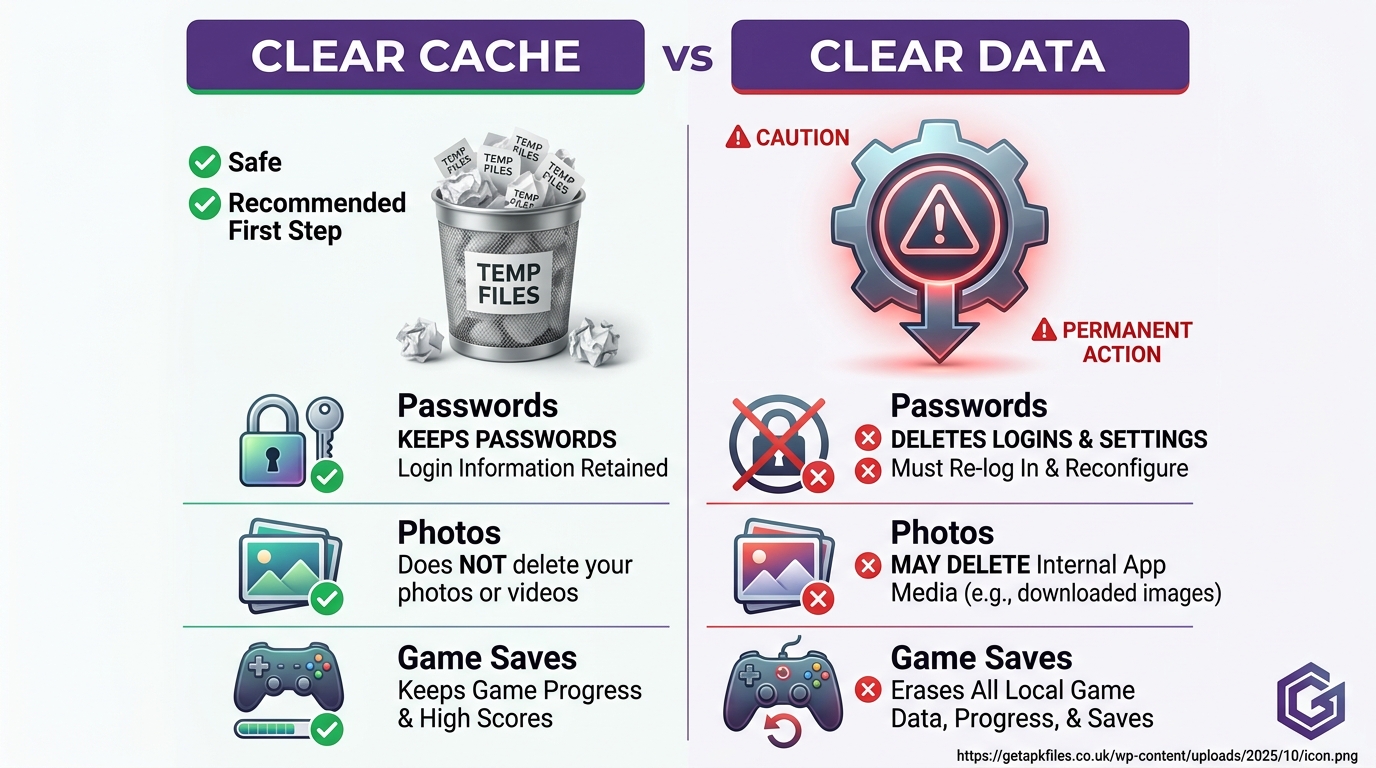
Clear Cache: The “Whiteboard” Method (100% Safe)
What exactly is an app cache? Think of it like an app’s short-term memory or a messy whiteboard. When you scroll through Instagram, the app downloads hundreds of profile pictures and video thumbnails. It stores these on the “whiteboard” (your cache) so that if you scroll back up, the images load instantly without using your mobile data.
✅ Verdict: Pressing “Clear Cache” is completely safe.
When you clear the cache, you simply wipe the whiteboard clean. You do not lose your account, your passwords, your messages, or your personal photos. The next time you open the app, it will simply take an extra half-second to re-download those temporary thumbnails from the internet. It is a painless way to fix lag in heavy games.
Clear Data: The “Filing Cabinet” Method (Warning!)
If cache is the whiteboard, app data is the heavy filing cabinet. This is the app’s long-term memory. It stores your usernames, secure login tokens, customized settings, offline playlists, and local game progression. For system apps, it holds vital device configurations managed by the Android Package Installer.
⚠️ Verdict: Pressing “Clear Data” resets the app entirely.
Clearing data is the “nuclear option.” It deletes everything inside the filing cabinet. It is the exact equivalent of uninstalling the app and downloading it fresh from the Google Play Store. If you clear data on a game without a cloud save, your progress is gone forever. If you clear data on WhatsApp without a backup, your message history vanishes.
Comparative Review: Cache vs. Data
Before you press anything in your settings menu, review this direct comparison chart. This eliminates all guesswork regarding what you will lose.
| Action / Result | Clear Cache (Safe) | Clear Data (Destructive) |
|---|---|---|
| Account Logins | Saved ✅ | Deleted ❌ |
| App Settings & Preferences | Saved ✅ | Deleted ❌ |
| Personal Photos/Messages | Saved ✅ | Deleted ❌ |
| Temporary Junk Files | Deleted ❌ | Deleted ❌ |
| Offline Music (e.g., Spotify) | Saved ✅ | Deleted ❌ |
The Worst Storage Offenders in 2026
You might wonder why your phone fills up so fast. Certain applications are notorious “cache hogs.” A recent deep-dive by Android Authority revealed that endless-scrolling apps pre-load up to 50 videos ahead of what you are currently watching. This prevents buffering but destroys your storage.

Apps like TikTok, Telegram, Spotify, and heavy photo editors routinely build caches exceeding 3GB. If your phone is running out of space, you should target these specific applications first. Clearing their cache provides immediate, massive relief without logging you out.
Step-by-Step: How to Clear Cache Properly
Now that you know what the buttons do, it is time to perform some digital spring cleaning. Regardless of whether you use a Pixel or a Samsung Galaxy interface, the steps remain largely identical.
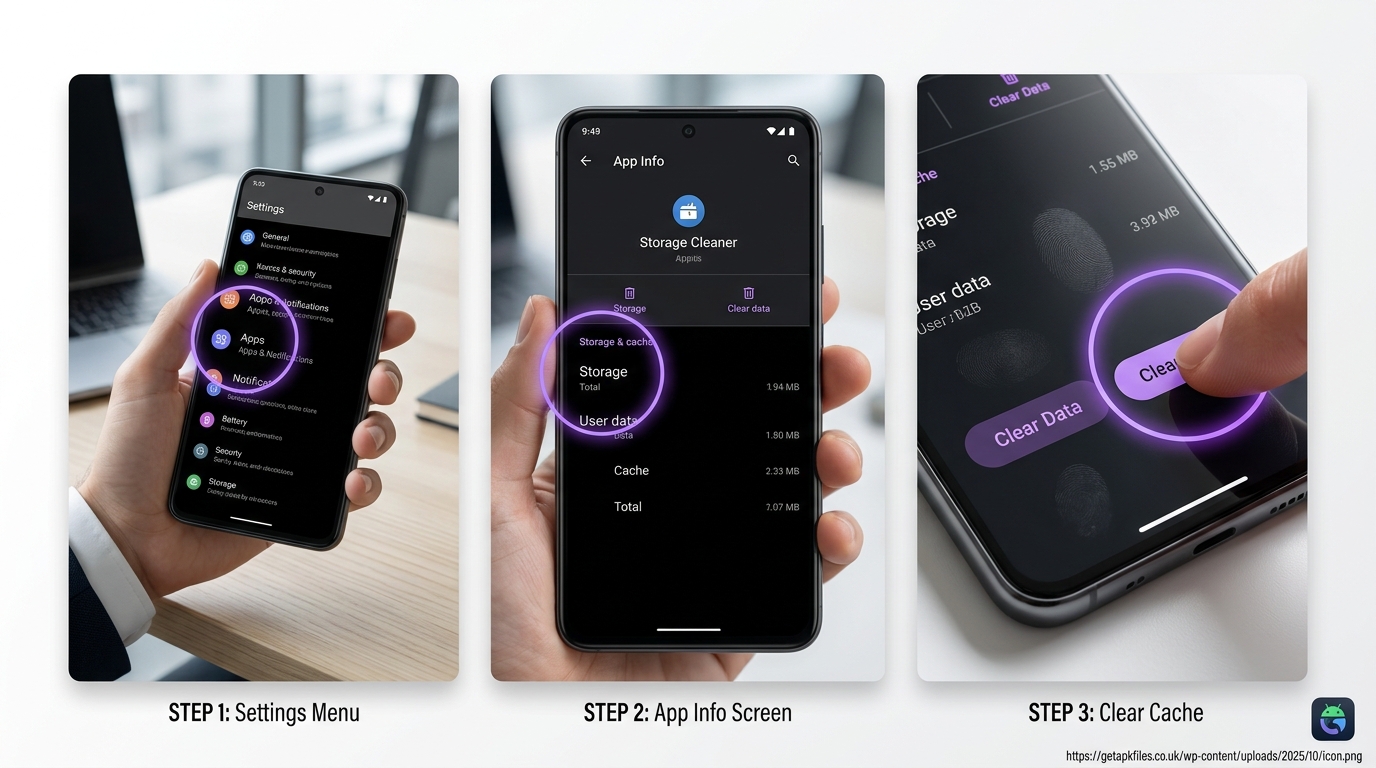
- Open your phone’s Settings app.
- Scroll down and tap on Apps (or App Management).
- Tap See all apps and locate a large app, like TikTok.
- Tap on the app, then select Storage & Cache.
- Press the Clear Cache button (usually accompanied by a trash can icon).
Warning: Avoid Sketchy “Cleaner” Apps
Do not download apps that promise to “boost speed” or “clean memory instantly.” According to security experts at XDA Developers, many third-party cleaner apps are filled with ads and secretly track your data. Worse, they constantly force-close background processes, which actually drains your battery faster because the phone has to restart them.
Your Android phone has excellent built-in tools. If you need a comprehensive overview of your storage, use the official Files by Google app. It safely identifies junk files and duplicate photos without compromising your device’s security.
Troubleshooting: When to Use “Clear Data”
If Clear Data is so destructive, why does the button exist? You should use it as a last resort troubleshooting step. If an app is constantly crashing, failing to load, or causing installation parsing errors, its core files may be corrupted. Clearing the data resets the app without forcing you to re-download the APK entirely. Always try clearing the cache first; if the app still crashes, then (and only then) should you clear the data.
Video Summary: A comprehensive visual tutorial demonstrating how clearing cache speeds up your device, while warning users against accidentally tapping Clear Data and losing app progression.
Expand Your Storage Effortlessly
Tired of constantly clearing your cache just to take a few photos? Upgrade your device’s physical storage with a high-speed, reliable MicroSD card optimized for 4K video.
Check MicroSD Card Prices Disclosure: This post contains affiliate links. We may earn a commission at no extra cost to you.Explore Further: Interactive Learning
Want to master your phone’s memory management? We converted official Android documentation into interactive learning tools using Google NotebookLM.
Final Expert Verdict
Understanding your smartphone’s storage does not require an IT degree. To summarize our findings: Clear Cache is a harmless, highly effective way to delete junk files and free up space quickly. It acts like an eraser on a messy whiteboard.
Conversely, Clear Data is a destructive reset button. You should only use it when an app is severely broken and refuses to load. By occasionally wiping the cache on large social media apps, you can keep your device running smoothly for years without ever losing a single precious memory.
Download Clear Cache vs Clear Data: What Frees Space Safely? APK
Safe, verified, and scanned for viruses.
Leave a Reply