
Factory Reset Android Safely: Erase Data Before Selling
🛡️ The Expert’s Warning:
“Your old phone is a goldmine of identity data. Passwords, banking details, and private photos live in its memory. Let’s make sure it’s an empty vault before you hand it over to a stranger.”
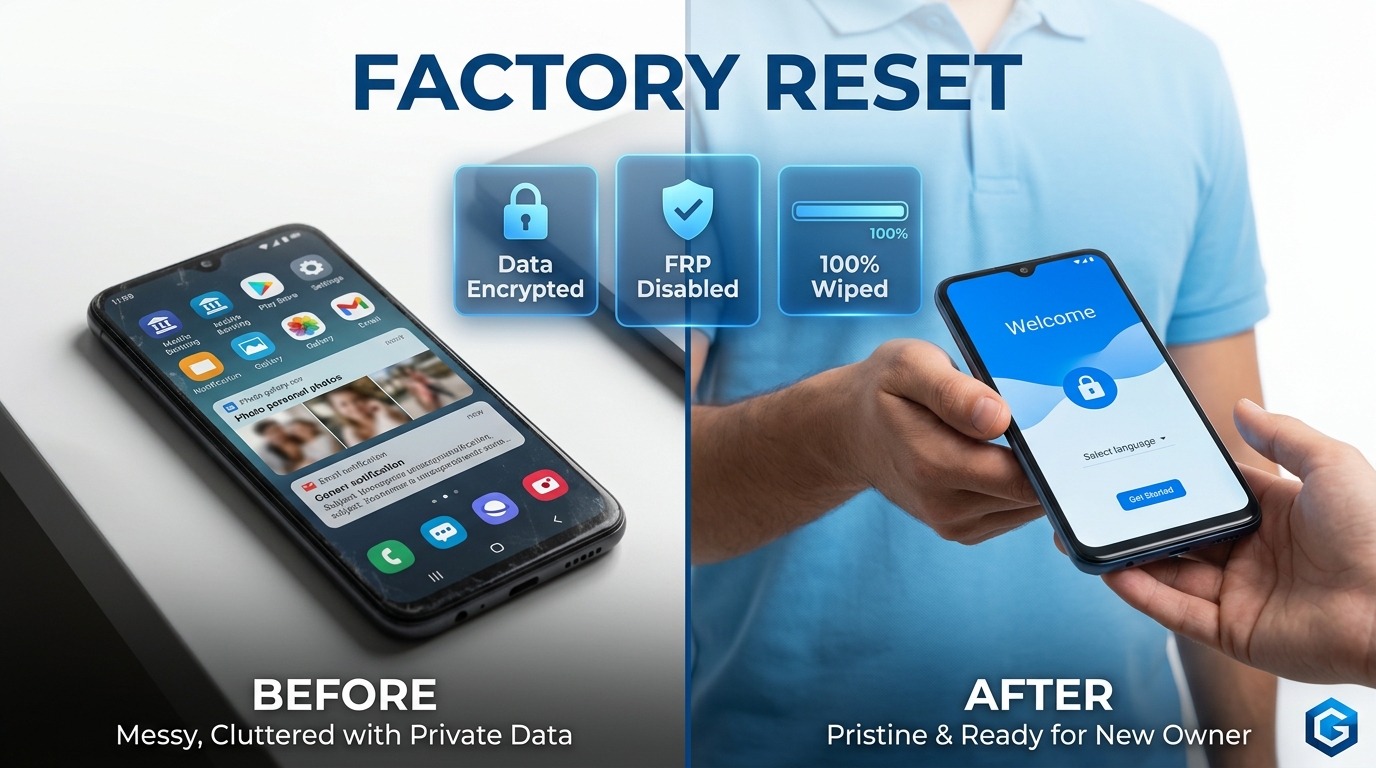
Selling or trading in an old smartphone is a smart financial move. However, handing your device to a new owner creates massive security anxiety. Are your photos really gone? Can a malicious buyer recover your Google Wallet details using cheap hacking software?
As your technical mentor, I will walk you through the exact protocol cybersecurity experts use to sanitize mobile devices. By the end of this guide, you will know how to perform a mathematically irreversible factory reset. You will trade in your old phone with absolute peace of mind.
The Evolution of Phone Wiping
Data deletion was not always safe. If we look back at early Android devices, a “reset” merely marked your storage space as empty. It did not actually scramble the files. According to computing archives at the Smithsonian and Wikipedia’s data erasure history, hackers used to buy used phones on eBay in 2014 and recover thousands of private messages.
The industry eventually fought back. Google introduced mandatory hardware-based encryption. Today, in 2026, the refurbished smartphone market is booming. Reuters reports that trade-in programs process millions of devices daily. To protect consumers, modern Android systems now use cryptographic shredding. But as we will explore, this powerful security measure has created a new trap for sellers: The Factory Reset Protection lock.
Phase 1: The Mentor’s Pre-Reset Checklist
Do not touch the reset button yet. Once you wipe the device, the data is gone forever. Let’s secure your important files first.
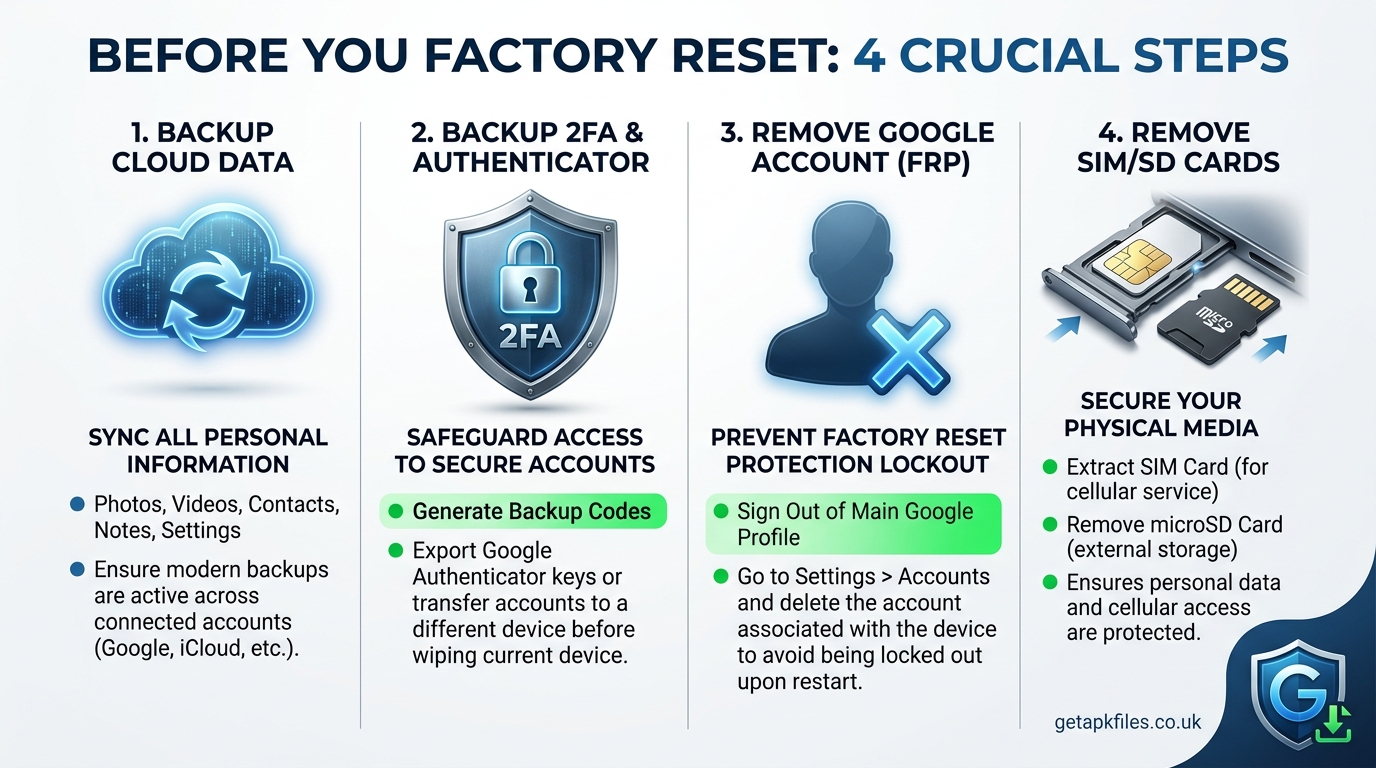
1. Backup Your Cloud Data
Verify that your Google One backup is recent. Go to Settings > Google > Backup and press “Back up now.” This secures your contacts, app data, SMS messages, and device settings. If you use a Google Pixel, this process is seamless.
2. Secure Your Authenticator Apps
This is the most common mistake people make. If you use Google Authenticator or Authy for two-factor authentication (2FA), you must transfer those accounts to your new phone first. A standard cloud backup does not save your 2FA codes for security reasons.
3. Save Local Media
Ensure your edited photos from apps like Snapseed and your health data from Google Fit are properly synced to the cloud. Check WhatsApp and manually trigger a chat backup to Google Drive.
Phase 2: Disabling Factory Reset Protection (FRP)
⚠️ Stop: Read This Before You Reset
If you do not manually remove your Google account before resetting, Android will assume the phone was stolen. Upon restarting, it will ask the new buyer for your email and password. Trade-in companies will reject the phone, and buyers will demand refunds. You must disable FRP.
To safely disable this anti-theft lock, follow these steps exactly:
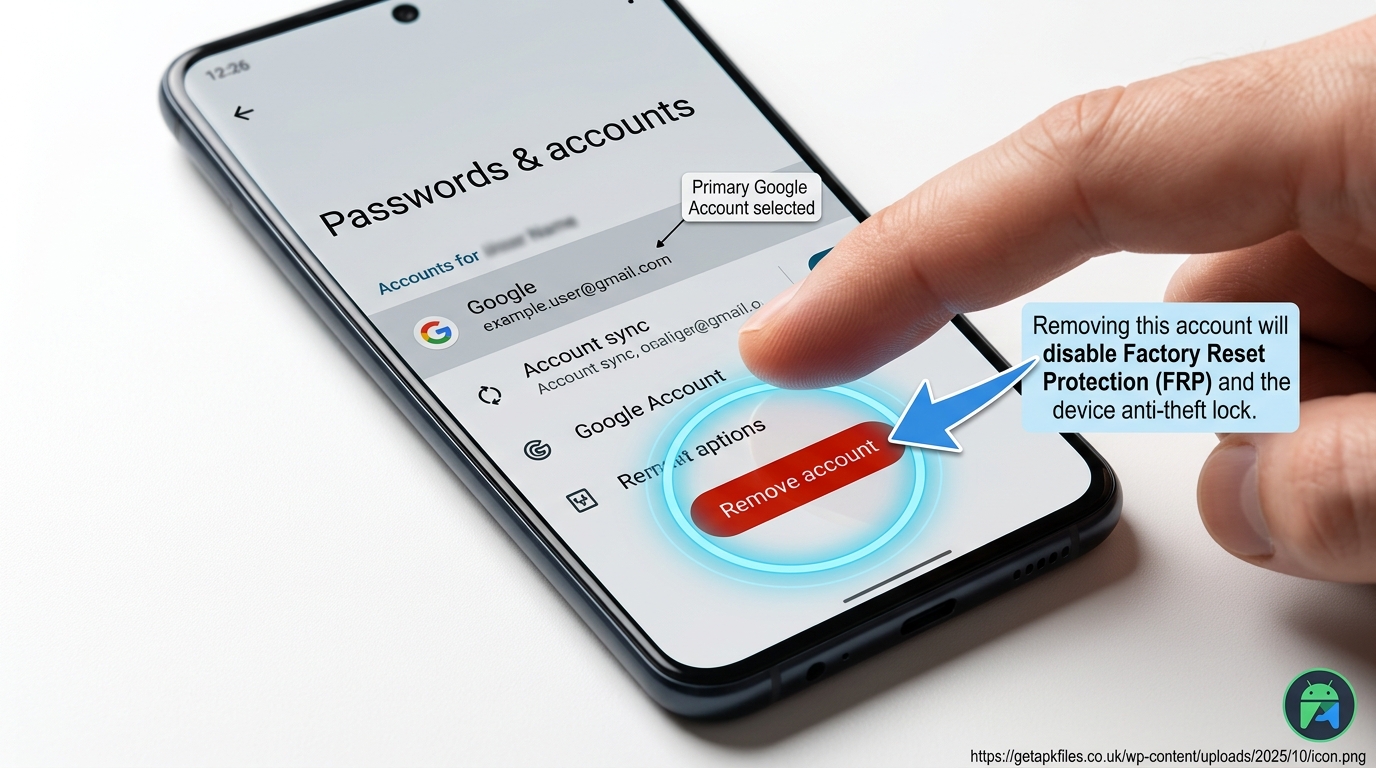
- Open your phone’s Settings.
- Scroll down and tap on Passwords & accounts (or ‘Users & accounts’).
- Tap on your Google account.
- Press the Remove account button.
- Confirm your device PIN or fingerprint to authorize the removal.
Note for Samsung users: If you are resetting a Samsung Galaxy device, you must also remove your Samsung Account using the same process.
Phase 3: Remove Physical Memory
A software factory reset only wipes internal storage. It does not touch physical media. Grab your SIM ejector tool and remove the SIM card tray. Take out your carrier SIM card, and if your phone has a MicroSD card slot, remove that as well. Double-check your device ports to ensure nothing is left behind.
Secure Your Offline Backups
Don’t trust the cloud entirely? Create an impenetrable local backup of your photos and documents before resetting your phone. We recommend an encrypted external SSD for ultimate peace of mind.
View Encrypted SSDs on Amazon Disclosure: This post contains affiliate links. We may earn a commission at no extra cost to you.Phase 4: Executing the Secure Wipe
Now that your data is backed up and FRP is disabled, you are ready to pull the trigger. Ensure your phone battery is charged to at least 50% to prevent corruption errors during the wipe sequence.
Step-by-Step Execution
Navigate to Settings > System > Reset options. Tap on Erase all data (factory reset). The phone will display a final warning screen. Tap “Erase all data” and enter your PIN one last time.
Understanding Cryptographic Shredding
You might wonder how it deletes 128GB of data so quickly. Modern Android devices utilize File-Based Encryption (FBE). Everything you save is instantly scrambled using a master mathematical key.
When you press “Factory Reset,” the phone does not delete the files individually. Instead, it instantly destroys that master key. According to cybersecurity experts at Wired, destroying the key turns your personal data into permanent, unreadable gibberish. This makes modern factory resets 100% safe.
Phase 5: Verification & Trade-In
The phone will reboot several times. Do not interrupt this process. Once it finishes, it will boot to a generic “Hello” or “Welcome” screen, asking you to choose a language. This is your verification.
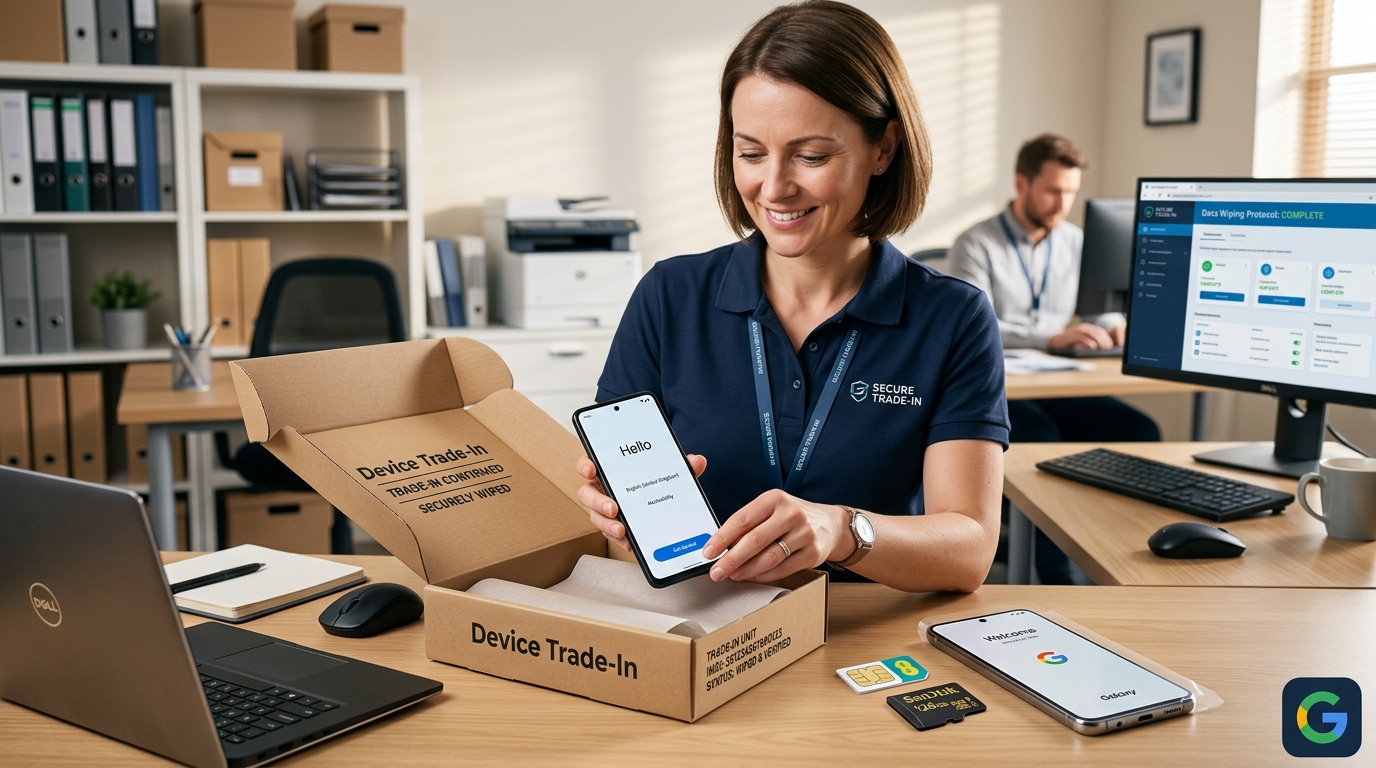
Power the device down from this screen. Wipe the screen with a microfiber cloth, place it in the shipping box, and send it to your buyer. You have successfully sanitized your device like a cybersecurity professional.
Expert Video Analysis: A comprehensive visual tutorial demonstrating the exact Google menus to navigate to remove your FRP lock, followed by the final factory reset execution.
Learn More: Interactive Security Tools
Want to understand exactly how Android protects your data? We converted official Google security documents into interactive learning modules using NotebookLM. Explore them below.
Final Expert Verdict
Selling your phone should not mean selling your privacy. We have established that simply tapping “Factory Reset” is no longer the entire process. The landscape of Android security has evolved significantly in 2026.
By treating this as a multi-step protocol—backing up your authenticators, disabling Factory Reset Protection, and finally executing the cryptographic wipe—you ensure a smooth transition. Your data remains absolutely secure, and the new buyer receives a perfectly functioning device.
Download Factory Reset Android Safely: Erase Data Before Selling APK
Safe, verified, and scanned for viruses.
Leave a Reply