
Stuck in Safe Mode? Turn It Off & Fix Instantly
Did you drop your phone, only to pick it up and find your favorite apps vanished? Don’t panic. Your data is not gone. You are simply trapped in Android’s defensive diagnostic state. Follow these expert steps to troubleshoot jammed buttons and rogue software instantly.
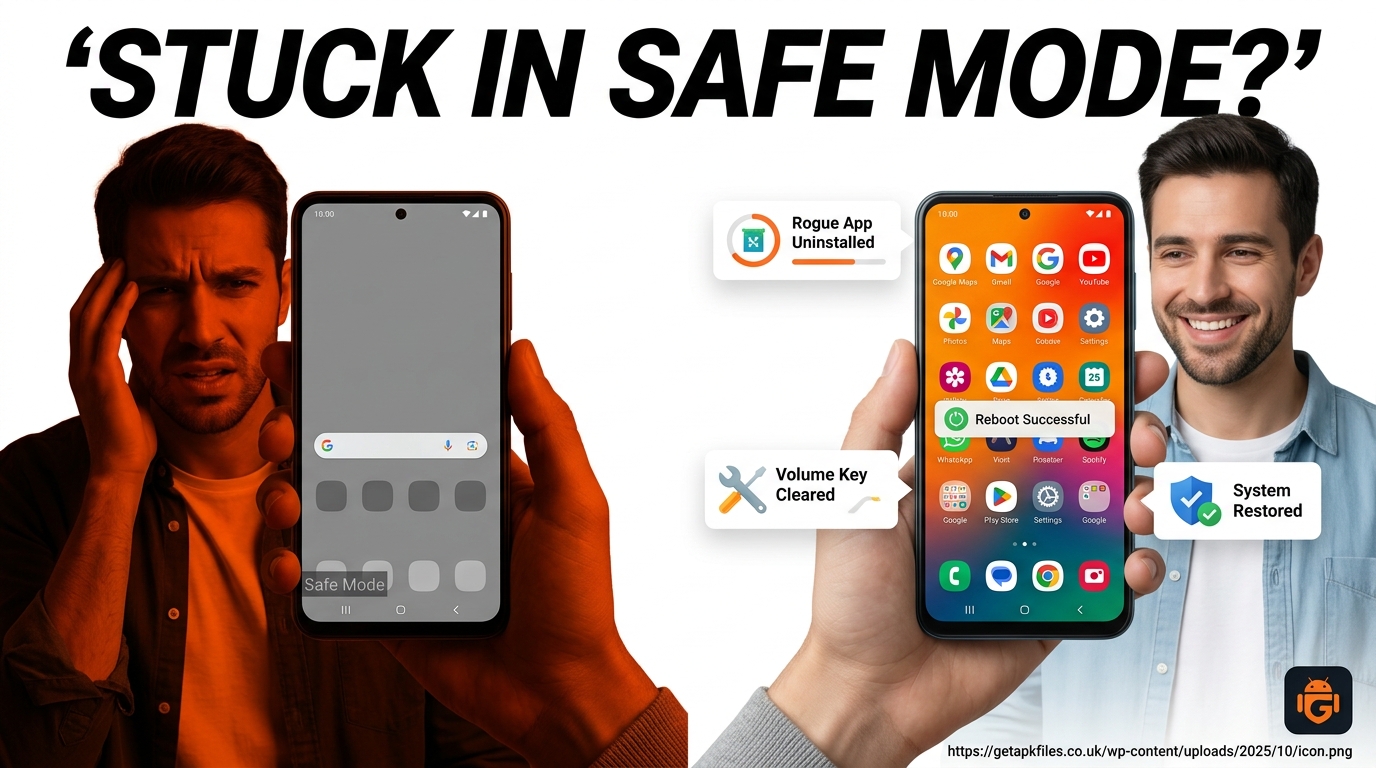
🚨 The “Missing Apps” Panic
You wake up, glance at your phone, and see a grey watermark in the bottom corner reading “Safe Mode.” Suddenly, WhatsApp is missing. Instagram is gone. Your banking apps are greyed out. Most users immediately assume their phone has been hacked or totally wiped. Take a deep breath. Your data is entirely secure.
Safe Mode is a temporary quarantine state. Android disables all third-party downloads to protect the core operating system from malicious code or critical crashes. However, getting stuck in this mode is a highly common and frustrating error in 2026. This guide will help you determine if your device is suffering from a software glitch or a physical hardware jam.
The Evolution of Diagnostic Booting
To understand why your phone is acting this way, we must look at software architecture history. According to Wikipedia’s computing archives, Safe Mode originated in desktop systems like Windows 95. It was a tool designed specifically for developers to bypass critical boot loops. Google integrated this concept into the Android operating system back in 2012 with Android 4.1 Jelly Bean.
Historically, triggering this state required precise, intentional button combinations. However, modern smartphone design has inadvertently complicated this. As reported by Android Authority, the rise of ultra-rugged, waterproof phone cases in 2025 and 2026 has led to a massive spike in “stuck in Safe Mode” searches. These heavy-duty cases frequently apply constant pressure to the volume keys, accidentally triggering the hardware diagnostic boot sequence every time the phone restarts.
Step 1: The Standard Software Restart
Before assuming hardware failure, attempt the easiest solution first. Simply restarting the phone clears the temporary parsing errors that occasionally force a diagnostic boot.
Android 15 & 16 Shortcuts
Modern operating systems have made this easier. Pull down your notification shade from the top of the screen. Look for an alert that says “Safe mode is on.” Tap that notification, and select “Turn off” or “Restart.” The phone will immediately power cycle and attempt a normal boot sequence.
If you do not see the notification, hold your physical Power button until the menu appears, then tap Restart. If your phone powers back up and the Safe Mode watermark is gone, your problem is solved. If the phone reboots and the watermark is still there, you are caught in a hardware loop. Proceed to Step 2.
Step 2: Addressing Hardware Volume Jams
When a device continuously boots into this diagnostic state despite software restarts, it is almost certainly a hardware interrupt. The motherboard enters Safe Mode because it believes you are holding down the Volume Down button during startup. You must break this signal.
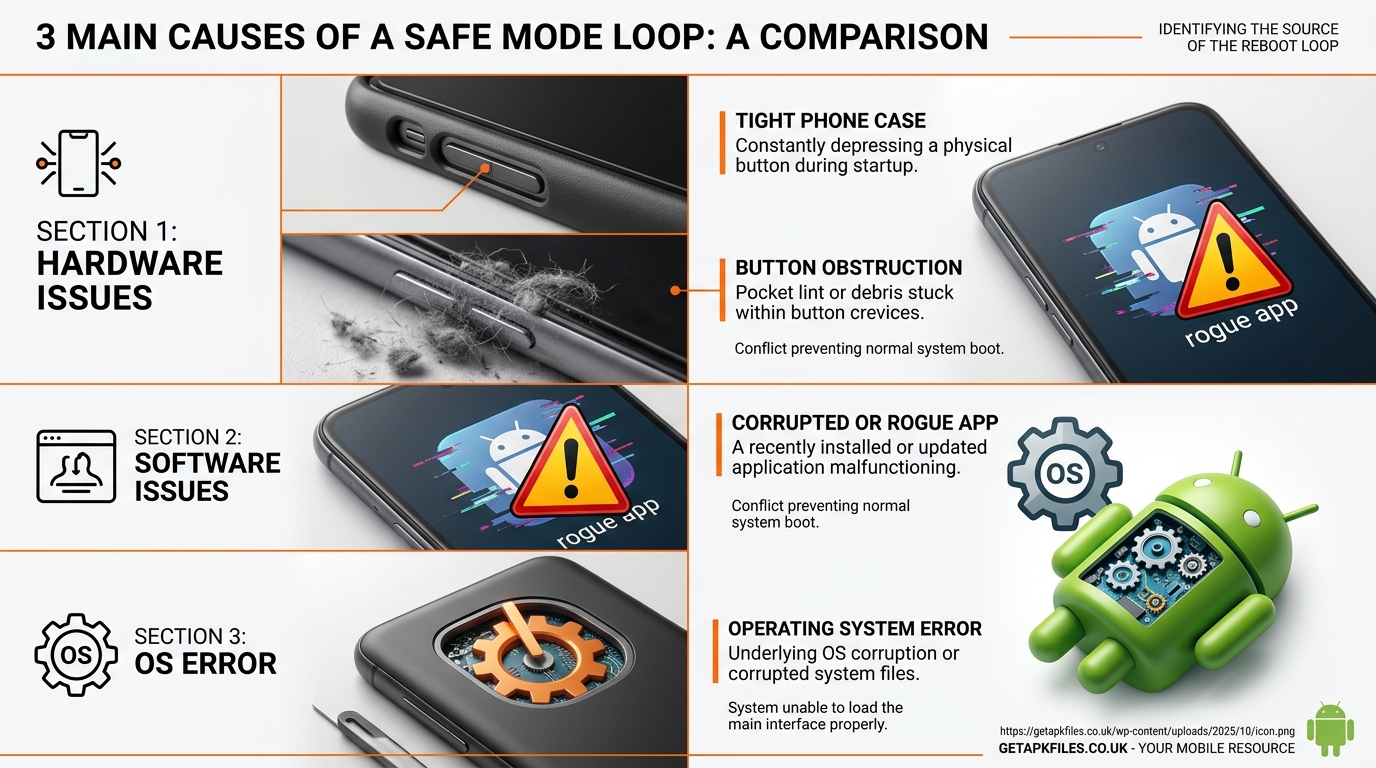
Remove Your Protective Case
As noted earlier, tight cases are the primary culprit. Remove your phone case entirely. Ensure the volume buttons feel “clicky” and responsive. If they feel mushy or stuck, proceed to cleaning.
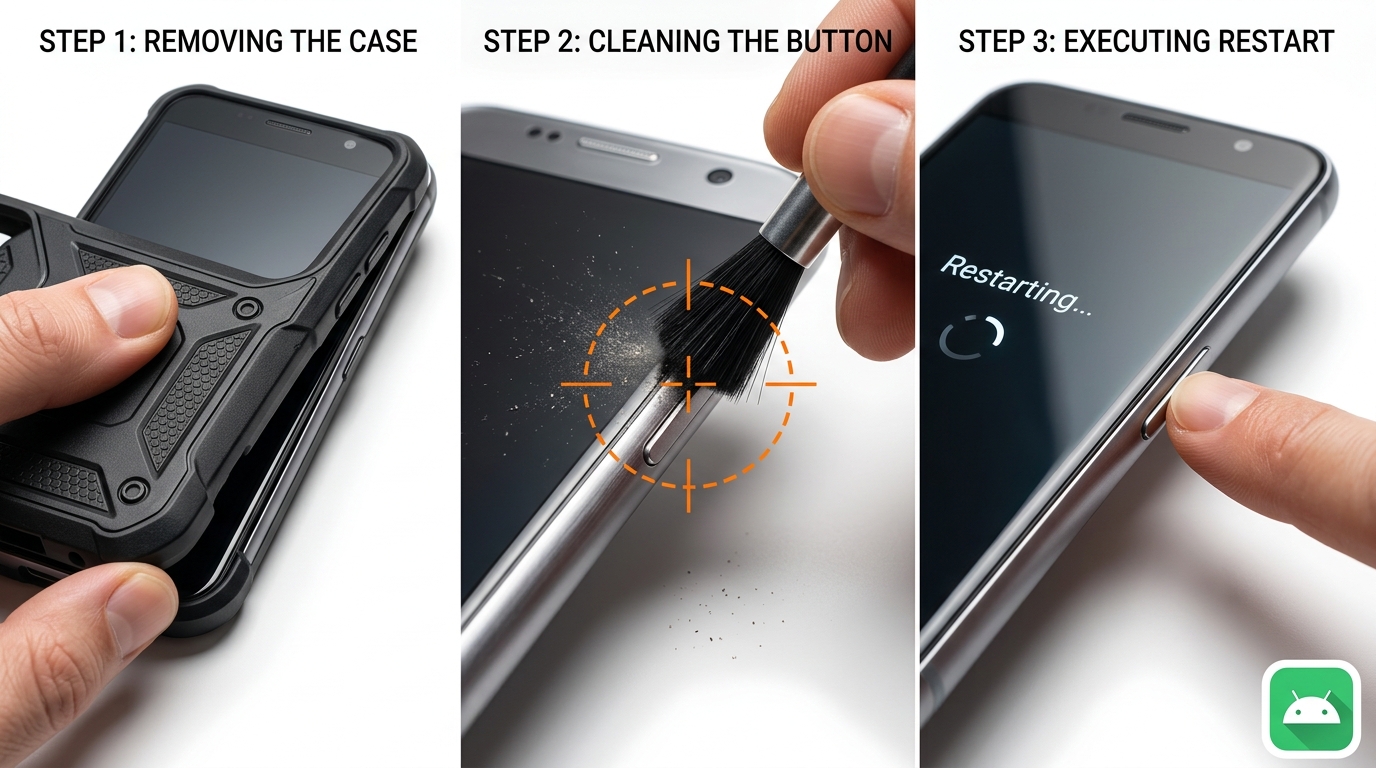
Clean the Physical Buttons
Dirt, pocket lint, or sticky residue can jam the internal volume flex cable. Follow these iFixit-recommended cleaning protocols:
- Power the device completely off.
- Use a dry, clean toothbrush to firmly scrub the crevices around the volume rocker.
- If sticky, apply a single drop of high-concentration isopropyl alcohol (90%+) to the button crevice.
- Click the volume down button rapidly 20-30 times to break up the internal debris.
- Allow the alcohol to dry, then turn the phone back on.
Step 3: Hunting the “Rogue App”
If your buttons are perfectly clean but the phone refuses to boot normally, you have a corrupted application. Safe Mode exists specifically to help you handle this scenario. A poorly coded app—perhaps an outdated background remover or a malicious third-party package installer—is crashing the system upon boot.
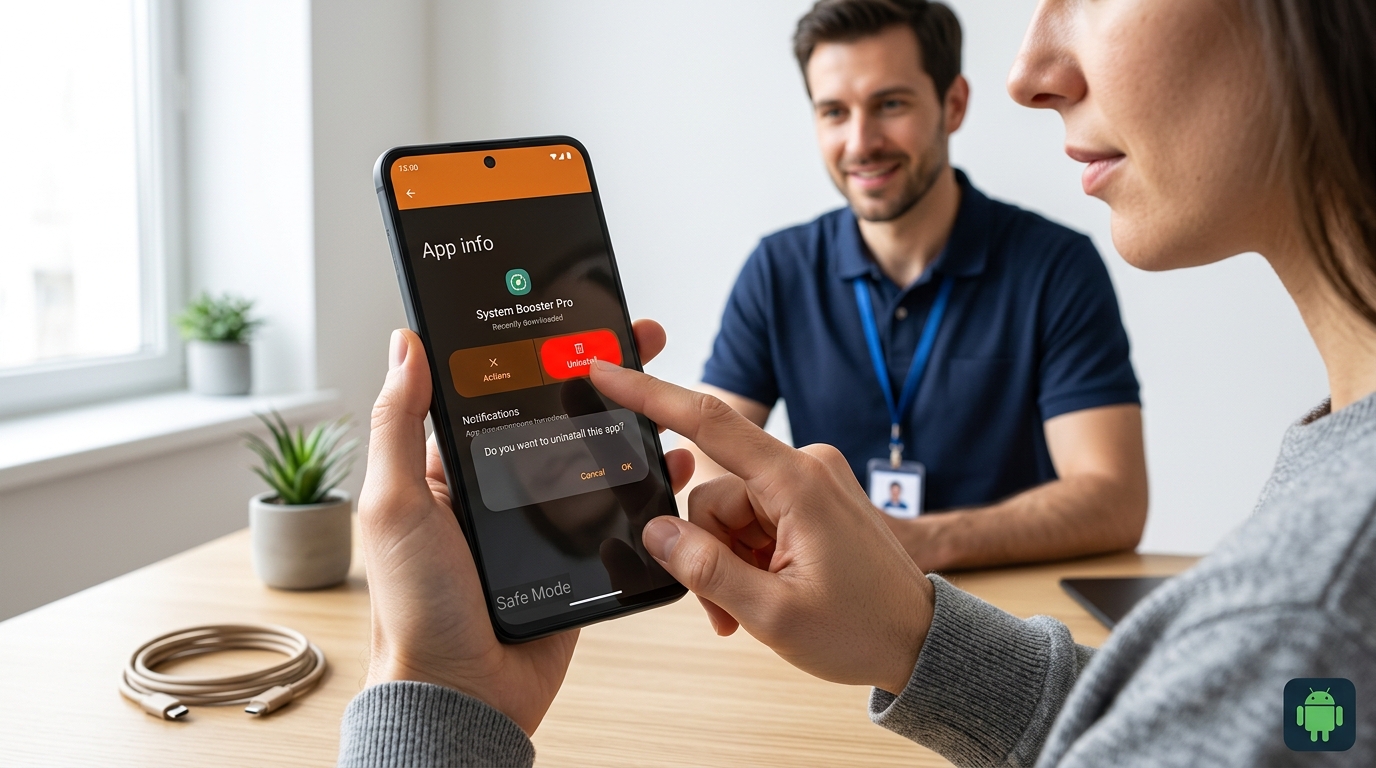
While in Safe Mode, navigate to Settings > Apps. Review the list of your most recently downloaded applications. You must systematically uninstall the newest apps one by one. After each uninstallation, attempt to restart the phone normally. Once the corrupted app is removed, the phone will finally break out of the boot loop.
Step 4: Advanced OS Recovery Methods
If neither hardware cleaning nor app uninstallation works, the core Android operating system is experiencing a severe conflict. You must utilize the Android Recovery Menu.
Wiping the Cache Partition
Power down your Samsung Galaxy or Pixel device. Hold the Power and Volume Up buttons simultaneously until the recovery logo appears. Use the volume keys to navigate down to “Wipe Cache Partition” and use the power button to select it. This clears corrupted system memory without deleting your personal files.
Expert Video Analysis: A comprehensive visual tutorial demonstrating how to properly scrub a jammed volume button and navigate the Android Recovery Menu to clear the system cache safely.
The Nuclear Option: Factory Reset
If absolutely everything else fails, you must perform a factory reset. This will permanently delete all photos, contacts, and apps that are not backed up to the cloud. You can trigger a factory reset from that same Android Recovery Menu. Only attempt this if you are completely locked out of the normal operating system for multiple days.
Fix Hardware Jams Like a Pro
Stop using dangerous sharp objects to clean your phone. Invest in a professional anti-static electronics cleaning kit to safely dislodge dirt from jammed volume rockers without severing internal flex cables.
View Cleaning Kits on Amazon Disclosure: This post contains affiliate links. We may earn a commission at no extra cost to you.Explore Further: Interactive Hardware Diagnostics
We converted technical repair manuals into interactive learning tools using Google NotebookLM. Explore these resources to better understand your device’s architecture.
Final Expert Verdict
Being stuck in Safe Mode is rarely a sign of total catastrophic failure. In most cases, it is a highly sensitive physical volume button misinterpreting a tight phone case or a speck of dirt as a deliberate command.
By systematically removing your case, cleaning the hardware, and checking for rogue applications, you can break the infinite loop quickly. Remember, this diagnostic state exists to protect your phone. Once you address the root cause, your device will reboot normally and all your precious data will be waiting exactly where you left it.
Download Stuck in Safe Mode? Turn It Off & Fix Instantly APK
Safe, verified, and scanned for viruses.
Leave a Reply